Ana Sayfa / Kod ve Scriptler / Import XLSX CSV Data Files Into SQL Server ASP.NET
Import XLSX CSV Data Files Into SQL Server ASP.NET
ASP.NET Core'un gücü ve sadeliğiyle xlsx ve csv gibi veri dosyalarını SQL Server'a aktarın
- Yayın tarihi13 Eylül 2023
- Paket içeriği.aspx, .css, .sql, .cs, .csproj
- Son güncelleme11 Nisan 2024

Overview
Introduction: The project aims to develop a robust and efficient web application using ASP.NET Core 8 technologies that allows user to import data files, such as XLSX and CSV into a SQL Server database. This application will provide a seamless and user-friendly experience for importing large volumes of data from various file formats (XLSX, CSV) using ASP.NET Core Web API, XML Bulk Insert, Dapper, CsvHelper, EPPlus and coding best practices.
Key Features: » XLSX and CSV File Support: The application supports importing data from both XLSX and CSV file formats. » File Validation and Error Handling: Before data import, files are validated for format and structure. Detailed error handling provides informative messages to users. » Mapping and Transformation: Data mapping and transformation allow users to map columns from files to database fields and perform necessary transformations during import. » Data Import Performance Optimization: The application optimizes data import performance using XML Bulk Insert and Dapper to efficiently insert large volumes of data into the SQL Server database.
Tools and Technology Used: » C# » ASP.NET Core 8 Web API » ASP.NET Core 8 Razor Pages » Clean Architecture » Dapper as ORM » XML Bulk Insert » CsvHelper » EPPlus » Bootstrap
Live Preview: http://108.181.173.241/Demo/ImportDataFile/User/ (Sample Excel File, Sample CSV File)
Screenshot:
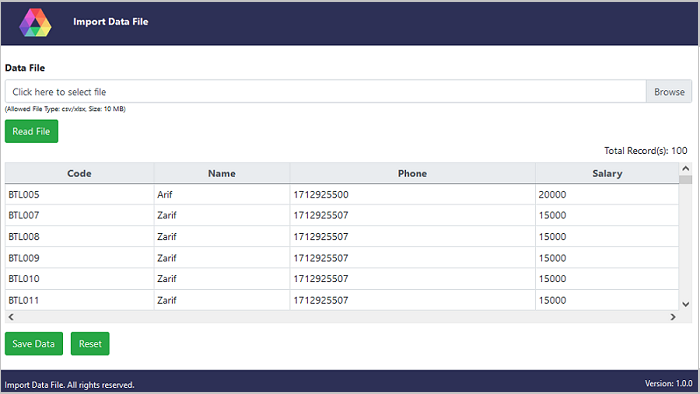
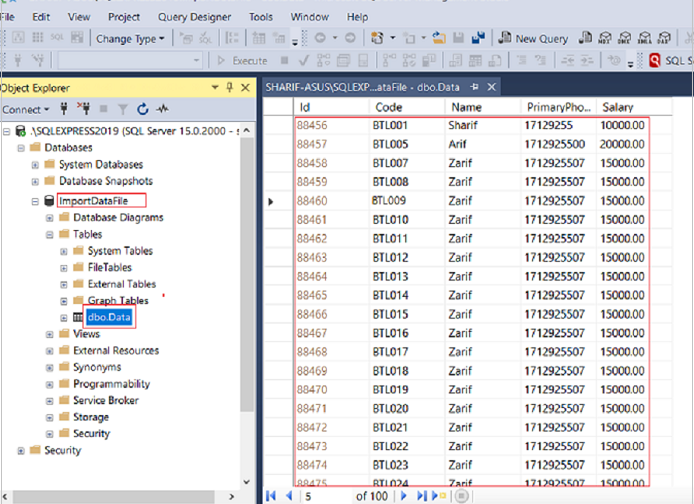
Quick Start Guide: To get started with the solution, follow these steps: » Make sure you have the required tools and technologies installed. » The solution has two separate execuable projects; ImportDataFile.API and ImportDataFile.UI. Make sure to run API project first, then the UI project. » Make sure to change the settings in appsettings files according to your UserRootPath, ConnectionStrings, BaseAPIAddress, SiteSettings etc. » Start exploring the features and functionalities of the solution. You can go through the detailed documentation for more details at: Detailed Documentation
What You Will Get: » Full Source Code with Visual Studio Solution » Database Script in SQL Express 2019
Requirements
To use the solution, you will need the following: » ASP.NET Core 8 » SQL Server Express 2019 » Visual Studio 2022
Benzer ürünler

ASP.NET Core, Web API, Razor Page ile web uygulaması oluşturmak için sağlam bir temel
Yayın: Ağustos 2023
Akademik el yazmalarının eşler arası değerlendirme sürecini düzene sokun
Yayın: Ağustos 2023
C#, Web API, Razor Pages, Identity, JWT, Bootstrap, xUnit, SQL Server kullanan Clean Architecture ile Admin Starter
Yayın: Ağustos 2023
Kiracı yalıtımı, kimlik doğrulama, roller, planlar, denetim günlükleri ve Docker kurulumu içeren bu ASP.NET Core ve Angular SaaS başlangıç paketi.
Yayın: Kasım 2026
Kasa sayımı, vardiyalar, iadeler, şube stoku, satın alma ve raporlar içeren ASP.NET Core POS sistemiyle perakende satış yönetin.
Yayın: Kasım 2026
.NET 10, Angular ve SQL Server ile çok şubeli okul ERP'si: kabuller, ücretler, sınavlar, yoklama, bordro ve veli portalı.
Yayın: Ekim 2026