Ana Sayfa / Eklentiler / Passkey Passwordless Login For WordPress
Passkey Passwordless Login For WordPress
Parmak izi, Face ID, PIN yedeğiyle WordPress ve WooCommerce için parolasız giriş. Güvenli WebAuthn girişi.
- Yayın tarihi21 Aralık 2025
- Nerede çalışırWooCommerce 7.x, WooCommerce 8.x, WordPress 6.5, WooCommerce 9.x, WordPress 6.6, WordPress 6.7, WordPress 6.8
- Paket içeriği.php, .css, .html, JavaScript .js
- Son güncelleme21 Aralık 2025
- Canlı demoVar


Overview
Passkey Passwordless Login for WordPress and WooCommerce is a modern authentication plugin that replaces traditional passwords with secure passkey login. It allows users to log in using fingerprint, Face ID, PIN, or hardware security keys, making authentication faster and safer.
This plugin uses WebAuthn and FIDO2 authentication standards to provide a password-free login experience for administrators, editors, and customers. By removing passwords, you reduce login friction while improving website security. To learn more about WordPress security plugins and authentication best practices, visit: Passkey Passwordless Login Blog
Secure Passwordless Authentication
The plugin enables passwordless login for WordPress using passkey technology supported by modern browsers and devices. This protects users from phishing attacks, credential theft, and brute-force login attempts. Users can authenticate using:
- Fingerprint login
- Face ID authentication
- Device PIN verification
- Hardware security keys
No password typing required.
WooCommerce Login Optimization
The plugin integrates seamlessly with WooCommerce and improves the customer login experience during checkout and account access. Faster authentication helps build trust and reduces login friction for customers. This makes it ideal for:
- WooCommerce stores
- Membership websites
- Business portals
- Subscription platforms
Easy Setup and User Management
Passkey registration and management happen directly inside the WordPress dashboard, making setup simple for both administrators and users. The plugin also includes backup login options, such as:
- Email One-Time Password (OTP)
- Backup recovery codes
This ensures users can always access their accounts securely.
Developer-Friendly Architecture
Built using clean, modular code that follows WordPress coding standards, the plugin is easy to extend and integrate with custom workflows or third-party plugins. It’s designed for performance, flexibility, and long-term scalability.
Key Features
- Passwordless login using passkeys
- WebAuthn and FIDO2 authentication support
- Fingerprint, Face ID, PIN, and security key login
- WooCommerce compatibility
- Supports all WordPress user roles
- Email OTP fallback login
- Backup recovery codes
- Secure and phishing-resistant authentication
- Simple dashboard-based setup
- Developer-friendly codebase
Live Demo
See the plugin in action: Passkey Passwordless Login Demo
Upgrade Your WordPress Login Security
Move beyond passwords with Passkey Passwordless Login for WordPress and WooCommerce. Provide users with a fast, secure, and modern authentication experience while protecting your website from common login attacks. Explore more WordPress plugins and solutions: https://codersgrow.com If you’d like, I can next:
- Create a short SEO description
- Suggest Codester tags
- Generate focus keywords
- Write a landing page version
- Create comparison content (Password vs Passkey login)
Features
- Enables secure Passwordless login via passkeys
- Works with fingerprint, Face ID, PIN, and security keys
- Supports all WordPress and WooCommerce user roles
- Prevents phishing, credential theft, and brute-force attacks
- Offers fallback login via email OTP or backup codes
- Developer-friendly, clean codebase
- Easy to set up and manage from the WordPress dashboard
Requirements
- WordPress: 6.0 or higher
- WooCommerce: 7.0 or higher (optional, required only for WooCommerce features)
- PHP: 8.0 or higher
- Database: MySQL 5.7+
- HTTPS: SSL certificate is required (WebAuthn works only on secure origins)
- Browser Support:
- Google Chrome (latest)
- Mozilla Firefox (latest)
- Microsoft Edge (latest)
- Safari 16+ (macOS & iOS)
- Device Support:
- Biometric-capable devices (fingerprint, Face ID, Windows Hello)
- Or FIDO2-compatible hardware security keys (USB/NFC/Bluetooth)
- JavaScript: Enabled in the browser
- REST API: WordPress REST API must be enabled
- User Account: Users must have a registered WordPress account to create passkeys
- Email Service: Required for OTP or backup login methods (optional but recommended)
Recommended Server Configuration
- Memory Limit: 128MB or higher
- OpenSSL: Enabled
- cURL: Enabled
- JSON: Enabled
Instructions
Step-by-Step Instructions
Step 1: Install the Plugin
- Download the Passkey Passwordless Login plugin.
- Go to WordPress Admin → Plugins → Add New.
- Upload the plugin ZIP file and click Install Now.
- Activate the plugin.
Step 2: Ensure HTTPS is Enabled
- Make sure your website is running on HTTPS (SSL enabled).
- Passkeys (WebAuthn) will not work on non-secure (HTTP) sites.
Step 3: Configure Plugin Settings
- Go to WordPress Admin → Settings → Passkey Login.
- Enable Passwordless Login.
- Choose where passkey login should appear:
- WordPress login page
- WooCommerce customer login
- WooCommerce checkout login
- Enable backup login methods (Email OTP or Backup Codes) if required.
- Save settings.
Step 4: Register a Passkey (User Side)
- Log in using your existing username and password.
- Go to My Account → Security → Passkeys (or Profile → Passkeys).
- Click Add New Passkey.
- Verify using:
- Fingerprint
- Face ID
- Device PIN
- Hardware security key
- Passkey will be securely stored on the user’s device.
Step 5: Login Using Passkey
- Open the WordPress or WooCommerce login page.
- Click Login with Passkey.
- Choose your saved passkey.
- Authenticate using biometrics or device security.
- You’re logged in instantly—no password required.
Step 6: Use Backup Login (Optional)
- If passkey is unavailable, click Use Backup Login.
- Choose Email OTP or Backup Code.
- Verify and access your account securely.
Step 7: Manage Passkeys
- Users can view or delete passkeys from their account dashboard.
- Admins can revoke passkeys for any user from the WordPress admin panel.
Step 8: WooCommerce Integration (Optional)
- Enable WooCommerce support in plugin settings.
- Passkey login appears on:
- My Account login page
- Checkout login
- Customers enjoy faster login and reduced cart abandonment.
Benzer ürünler

MLM, rütbeler, kuponlar ve akıllı komisyon takibi içeren güçlü WooCommerce affiliate eklentisi.
Yayın: Mart 2026
PreOrder Products Manager for WooCommerce, ön siparişleri ve kısmi ödemeleri etkinleştirerek ürünleri kullanılabilir olmadan önce satmanızı sağlar
Yayın: Kasım 2025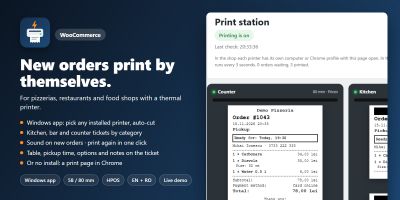
Yeni WooCommerce siparişleri, mutfak, bar ve gişe biletleri gibi 58/80 mm termal yazıcılarda kendiliğinden yazdırılır.
Yayın: Kasım 2026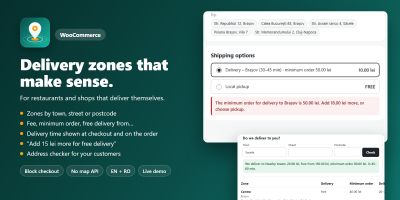
WooCommerce teslimat bölgelerini özel ücretler, minimum siparişler ve teslimat süreleriyle şehre, caddeye veya posta koduna göre ayarlayın.
Yayın: Kasım 2026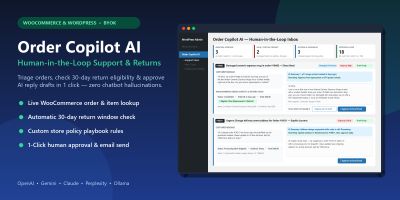
WooCommerce ve WordPress için insan denetimli yapay zekâ müşteri desteği, iade politikası triyajı ve tek tıkla yanıt taslakları.
Yayın: Kasım 2026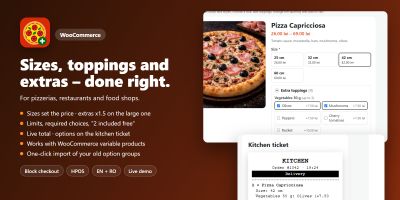
Ceacliu, canlı toplam ve mutfak biletiyle WooCommerce ürünlerine boyutlar, ekstra malzemeler, soslar ve açıklamalar ekliyor.
Yayın: Kasım 2026