Ana Sayfa / Eklentiler / Quick Woo Boost Suite
Quick Woo Boost Suite
WooCommerce'e sipariş artırıcılar (order bump), ücretsiz kargo ilerleme çubuğu, ödeme alanı denetimleri ve satın alma bildirimleri ekleyin.
- Yayın tarihi13 Ekim 2026
- Nerede çalışırWooCommerce 2.8.x, WooCommerce 2.9.x, WordPress 6.2, WordPress 6.6, WordPress 7.0
- Paket içeriği.php, .css, .html
- Son güncelleme13 Ekim 2026

Overview
Welcome to WooBoost Studio! We develop high-utility e-commerce extensions—including Order Bumps, Free Shipping Progress Bars, Checkout Field Cleaners, and Social Proof engines—engineered for maximum speed and conversion performance.
Requirements
Wordpress Woocommerce
Instructions
Quick Woo Boost Suite — Official User Documentation
Welcome to Quick Woo Boost Suite, the all-in-one conversion optimization toolkit designed to skyrocket your WooCommerce store’s Average Order Value (AOV) and reduce checkout abandonment.
1. Getting Started & Dashboard Overview
Once installed and activated, you can access the plugin settings by navigating to your WordPress admin dashboard and clicking WooCommerce > Woo Boost.
- The dashboard is divided into clean, tabbed sections for Order Bumps, Free Shipping, Checkout Cleaning, and Social Proof.
2. Configuring the Order Bump
An order bump allows customers to add a complementary product (like an extended warranty or accessory) with a single checkbox right on the checkout page before they pay.
How to Set It Up
- Go to WooCommerce > Woo Boost, and make sure you are on the Order Bump tab.
- Choose your preferred display position (e.g., Before Place Order Button).
- Use the AJAX product search box to type and select the product you want to offer as an upsell.
- Customize your badge text (e.g.,
SPECIAL OFFER), heading, and description using the rich text editor. - Tailor the color scheme (background, border, badge, and text colors) to match your brand style.
- Click Save Changes.
3. Setting Up the Free Shipping Progress Bar
Encourage customers to add more items to their cart by showing a real-time progress bar toward your free shipping threshold.
How to Set It Up
- Navigate to the Free Shipping Bar tab.
- Enter your target free shipping goal amount (e.g.,
5000for your local currency). - Set your custom messages:
- Before Goal: Use
{difference}as a dynamic placeholder (e.g.,Add {difference} more to get FREE Shipping!). - Success Message: (e.g.,
Congratulations! You unlocked FREE Shipping!).
- Before Goal: Use
- Placement Note:
- If you use a Classic Checkout, the bar displays automatically via hooks.
- If you use a Block/Gutenberg Checkout, simply edit your Checkout page in WordPress, add a Shortcode Block, and paste
[quick_shipping_bar].
4. Cleaning Up Checkout Fields
Reduce form friction and cart abandonment by removing unnecessary clutter from your checkout fields.
How to Set It Up
- Open the Checkout Cleaner tab.
- Toggle on the items you wish to remove or modify:
- Hide Company Field
- Hide Address Line 2
- Hide Order Notes
- Make Phone Optional
- Auto-Hide Address on Local Pickup (Automatically collapses street address, city, and zip code fields when a customer chooses local store pickup).
- Click Save Changes.
5. Enabling Social Proof Popups
Build instant buyer trust by displaying real or simulated recent purchase notifications in the bottom-left corner of your store.
How to Set It Up
- Go to the Social Proof Popup tab.
- Toggle on Enable Live Popups.
- Set your order history scan window (e.g., scan the last 24 hours of orders). If no orders exist, the plugin intelligently falls back to showcase sample store products.
- Click Save Changes.
Benzer ürünler
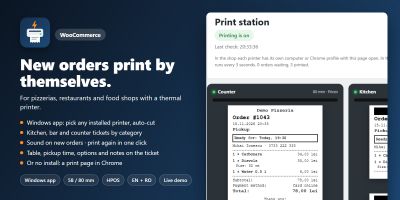
Yeni WooCommerce siparişleri, mutfak, bar ve gişe biletleri gibi 58/80 mm termal yazıcılarda kendiliğinden yazdırılır.
Yayın: Kasım 2026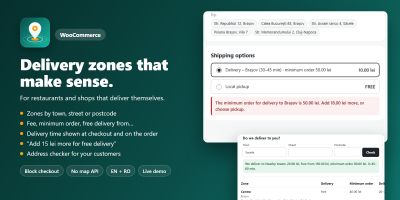
WooCommerce teslimat bölgelerini özel ücretler, minimum siparişler ve teslimat süreleriyle şehre, caddeye veya posta koduna göre ayarlayın.
Yayın: Kasım 2026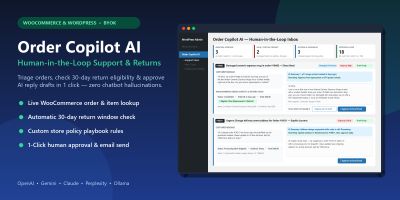
WooCommerce ve WordPress için insan denetimli yapay zekâ müşteri desteği, iade politikası triyajı ve tek tıkla yanıt taslakları.
Yayın: Kasım 2026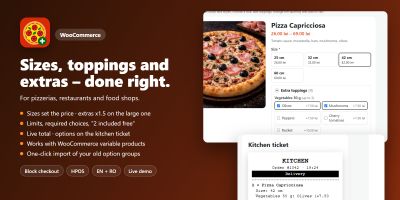
Ceacliu, canlı toplam ve mutfak biletiyle WooCommerce ürünlerine boyutlar, ekstra malzemeler, soslar ve açıklamalar ekliyor.
Yayın: Kasım 2026
Hatırlatma e-postaları, kupon ödülleri, ürün soruları ve inceleme widget'larıyla WooCommerce fotoğraf ve video incelemelerini toplayın.
Yayın: Kasım 2026
WooCommerce açılış saatlerini ayarlayın, ön siparişleri kabul edin, teslimat veya teslim alma zaman dilimleri teklif edin, siparişleri sınırlayın ve ödemeyi duraklatın.
Yayın: Kasım 2026